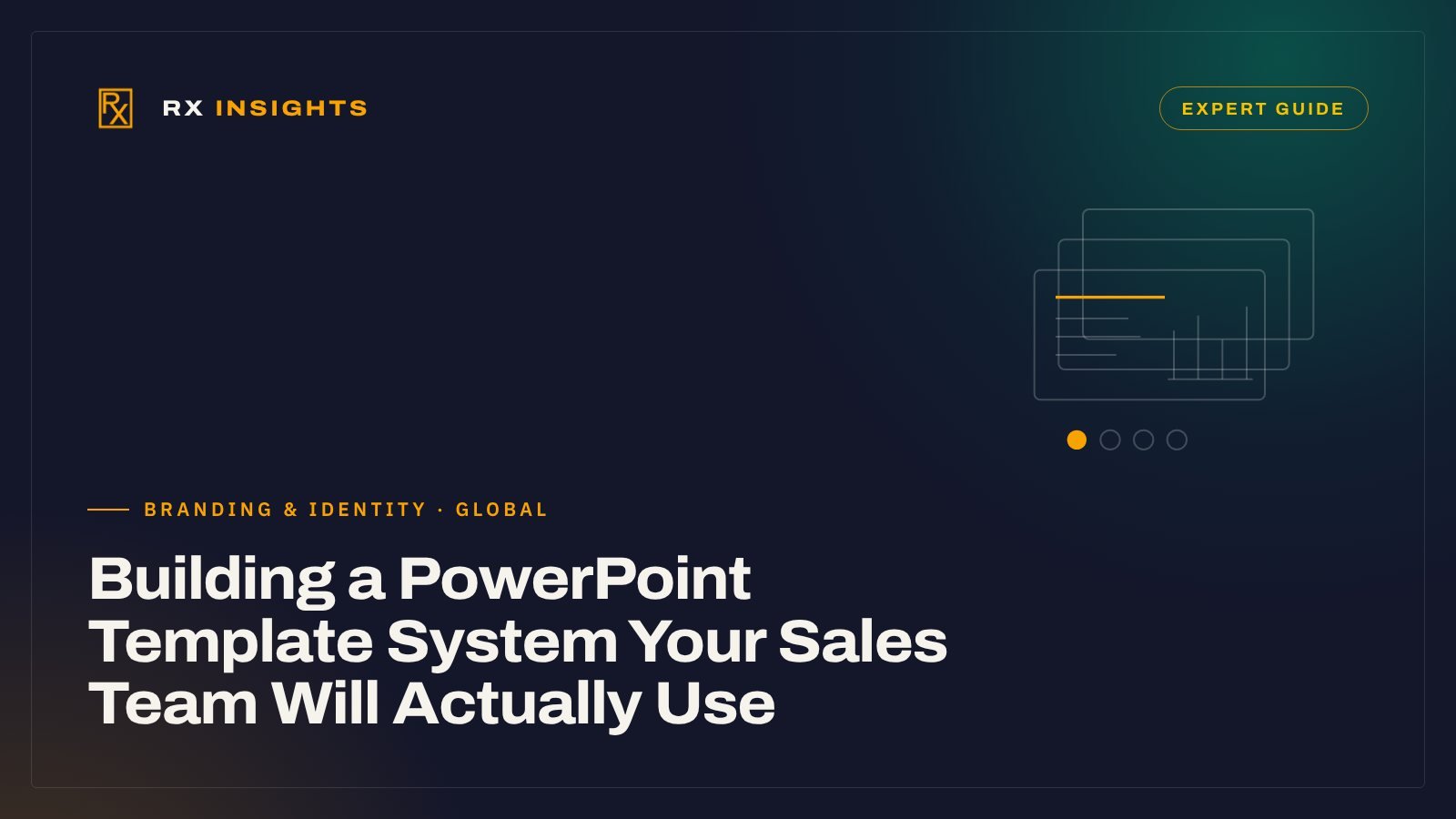
- Design layouts for the slides your team actually builds, not for a generic title-and-bullets deck.
- Set theme colours and theme fonts properly, including the complex-script font that Arabic text uses.
- Build Arabic right-to-left layouts as their own layouts, and test them with real Arabic copy.
- Ship a small library of approved charts, icons and photos, and give the template one owner and a version number.
Open five recent proposals from your sales team and lay them side by side. In many companies you will find five slightly different blues, three heading fonts, a logo stretched to fit, and charts pasted from a spreadsheet in its default colours. Each salesperson started from an old deck, fixed what annoyed them and saved it as their own. Nobody set out to break the brand.
The fix is rarely a stricter rule. It is a template that makes the correct slide the easiest slide to build. This guide covers how to build that system in PowerPoint: the layouts, the theme, the Arabic settings, the asset library and the governance that keeps it alive.
Why sales decks drift off-brand
Drift usually has a small number of causes, and each one points to a design decision you can make differently.
- The template only covers the easy slides. It has a cover, a section divider and title-and-content. The moment someone needs a pricing comparison, a project reference or a team slide, they draw it freehand.
- Formatting lives on the slide, not in the master. If colours and fonts were applied manually to each element, every copy-paste carries a slightly different version forward.
- Arabic was an afterthought. English slides look right; Arabic slides fall back to a default font and left-aligned text, so the team builds its own Arabic version.
- Assets are scattered. Approved photos, icons and logos sit in a designer’s folder, so people search the web or reuse low-resolution screenshots.
- Nobody owns it. Version 1 is emailed out, someone improves a copy, and within a year there are several versions in circulation.
If the team ignores the materials altogether, not only the template, the cause is usually wider; see why sales teams ignore the marketing materials.
A template system answers each of these. The rest of this guide takes them in order.
Start from the slides your team actually builds
Before any design work, collect a good sample of real recent decks (a few dozen is a sensible target if you have them): proposals, company introductions, project updates, tender presentations, partner and dealer briefings. List the slide types that recur (what each document type should contain is covered in proposals and quotations and pitch deck or company profile). For a B2B company the list often looks something like the table below. Treat it as a starting point and replace it with what your own decks show.
| Slide type | What the layout needs |
|---|---|
| Cover | Title, client name, date, optional co-brand logo area |
| Agenda and section dividers | Numbered sections that match the agenda |
| About us in one slide | Short statement, three to four proof points, picture placeholder |
| Problem and approach | Two-column or three-step structure |
| Service or product detail | Picture, specification list, short benefit lines |
| Project reference | Project photo, client, scope, location, year |
| Comparison or options | Two or three columns with a recommended option |
| Chart with one message | Headline that states the conclusion, chart placeholder, source line |
| Team or contacts | Repeating photo, name and role blocks |
| Closing and next steps | Numbered actions, contact details |
Each of these becomes a named layout. A short set of well-built layouts, often somewhere around ten to fifteen, is more useful than forty that nobody can tell apart. Remove the built-in layouts you will not use, so the Layout menu shows only your options.
Build it in the slide master, not on the slides
PowerPoint’s structure is designed for exactly this. In Slide Master view, the slide master sits at the top and the layout masters beneath it each define one layout. Microsoft describes layouts as containing “formatting, positioning, and placeholder boxes for all of the content that appears on a slide” (Microsoft Support: What is a slide layout?).
Theme colours and theme fonts first
Set the brand palette as theme colours and the brand typefaces as theme fonts, then let every placeholder, table and chart inherit them. When colours and fonts come from the theme, a pasted slide adopts the destination deck’s styling instead of importing its own. Microsoft’s theme font dialog pairs a heading font with a body font and only lists fonts installed on the machine (Microsoft Support: Create new theme fonts), so install the licensed brand fonts before you start.
Placeholders with instructions inside them
Add placeholders from the Slide Master tab with Insert Placeholder, choosing the type (text, picture, chart, table and so on) and drawing it where the content belongs. You can also replace the generic “Click to add text” prompt with your own wording (Microsoft Support: Add, edit, or remove a placeholder). Use that prompt as a micro-brief: “Headline: state the conclusion in one line” or “Project photo, landscape, no faces cut off at the edge”. Users read these prompts at the exact moment they need them.
One behaviour to plan for: changes to a layout do not update existing slides automatically. Microsoft’s placeholder guidance finishes with reapplying the changed layout: select the slides in Normal view, then choose the revised layout from Home, Layout. Tell your team this when you release an update, or older slides will keep the old positions.
Save it as a real template
Save the file as a PowerPoint Template (.potx). PowerPoint normally switches to the Custom Office Templates folder, and users then start new decks from File, New, Personal (Microsoft Support: Create and save a PowerPoint template). Ask the team to start every deck this way rather than opening and editing the template file itself, so the master stays intact.
Arabic and right-to-left slides
For companies selling in Saudi Arabia, the UAE, Qatar or Egypt, the Arabic deck is often the one that reaches the decision-maker. It deserves the same engineering as the English one, and it should follow the Arabic rules already set in your bilingual identity system.
Set the complex-script font in the theme
A PowerPoint theme does not hold a single heading font and a single body font. In the Open XML file format, each font set carries separate entries for Latin, East Asian and complex-script typefaces (Microsoft Learn: MajorFont class). Arabic is a complex script, and PowerPoint’s documentation of the font property links the two: with a right-to-left language set, the complex-script font corresponds to the Complex scripts font list in the Font dialog (Microsoft Learn: Font.NameComplexScript).
The practical consequence: do not assume that setting the Latin brand fonts also takes care of Arabic. Ask for the Arabic brand typeface to be set explicitly in the complex-script entries for both heading and body, then test it: type Arabic into every placeholder and check the font name PowerPoint reports.
Enable right-to-left editing on the team’s machines
The Right-to-left paragraph button in the Home tab’s Paragraph group only appears when a right-to-left language is enabled. Users add Arabic under File, Options, Language, and need the Arabic keyboard layout enabled in the operating system to type it. Note Microsoft’s warning that setting a new editing language as the default changes it for all Microsoft 365 programs (Microsoft Support: Using right-to-left languages in Office). Include these steps in the template’s one-page user guide; many “broken Arabic” complaints are a settings issue, not a design one.
Build Arabic layouts as their own layouts
An Arabic slide is not an English slide with right-aligned text. Reading starts on the right, so the logo position, the order of columns, the direction of process arrows and the side the photo sits on are worth mirroring. We recommend building an Arabic version of each core layout, set its placeholders to right-to-left with right alignment, and name them clearly, for example “AR – Project reference”. Then test with real copy, not placeholder text: Arabic headlines often run longer or shorter than the English, and mixed lines with English product names, model numbers and figures are where alignment problems show up.
A small library of approved charts, icons and photos
Layouts control structure. A library controls the content people drop into it. Keep it small enough that people actually browse it.
- Charts. Style a bar, line and doughnut chart once in the brand colours and save each as a chart template (.crtx). Microsoft’s guidance is to create the template in Excel and then choose it when inserting a chart in PowerPoint, from the Templates folder on the All Charts tab. Note that a chart template keeps the colours it was saved with rather than the current theme colours; Reset to Match Style switches it back to the theme (Microsoft Support: Save a custom chart as a template).
- Icons. One style, one line weight, coloured from the theme. Thirty icons that cover your services and industries beat three hundred from mixed sources.
- Photos. Approved project, product, team and facility photos, already cropped to the picture placeholder ratios. Keep a note of usage rights for each.
- Ready-made slides. A “slide library” deck with finished versions of the slides people rebuild most: company overview, certifications, client logos, standard process. People copy from it rather than from last year’s proposal.
This is where a template connects to wider sales material. If your proposals, company profile and presentations are built from the same parts, the buyer sees one company across every document. That is the logic behind our sales enablement work, and it is how SafeCo’s client presentation deck sat within a wider brand system of collateral, signage and campaigns (SafeCo Group case study).
Distribution, fonts and ownership
A template that is hard to find will be bypassed. A template with missing fonts will look broken on the client’s laptop. Plan both.
Put the template where people start new decks
If your company uses Microsoft 365 with SharePoint, an administrator can designate a SharePoint document library as an organisation assets library for Office templates. Users of Microsoft 365 Apps (version 2002 or later) then see an organisation tab when creating a new file; Microsoft notes it can take up to 24 hours to appear in the desktop apps, and that PowerPoint on the web shows these templates through the Office Template Library and needs an Office 365 E3 or E5 licence (Microsoft Learn: Create an organization assets library). If you do not have that setup, a single shared folder with one clearly named current file is the minimum.
Handle fonts deliberately
Decide what happens when a deck is opened on a machine without the brand fonts. PowerPoint for Windows and Mac can embed fonts from File, Options, Save, either only the characters used or all characters, which is the better option when others will edit the file. Not every font can be embedded; it depends on the embeddability level the font’s maker set, and Microsoft’s cloud fonts download automatically instead (Microsoft Support: Benefits of embedding custom fonts). Check your font licence before relying on embedding, and when a deck goes to a client for review only, send a PDF.
Give it one owner and a version number
- Name one owner, usually in marketing, who approves changes to the master.
- Put a version number and date on a hidden or final slide, and in the file name.
- Collect requests from sales every quarter: which slides they still build by hand. Those become the next layouts.
- When you release a version, retire the old file from the shared location and tell people how to reapply updated layouts.
Before you sign off the template
Run this check with two real users, one from sales and one who writes in Arabic, building a real proposal from scratch.
- Every recurring slide type has a named layout, in English and in Arabic.
- Colours and fonts come from the theme; nothing is formatted by hand in the master layouts.
- Arabic text renders in the brand Arabic typeface in every placeholder, with right-to-left direction and right alignment.
- Placeholder prompts tell the user what to put there.
- Charts in the library match the brand palette and the theme.
- The file is a .potx in the place people start new decks, with a version number.
- A one-page guide covers starting a deck, Arabic settings and reapplying layouts.
Then set a review date. A month after launch, open the last ten decks the team sent and note every slide that was rebuilt by hand: each one is a layout or library slide the template still lacks. A template built as part of a brand identity system, with its guidelines, will hold its shape far longer than one designed on its own.
Frequently asked questions
What is the difference between a PowerPoint theme and a template?
A theme is the set of colours, fonts and effects. A template (.potx) is a file that contains the theme plus the slide master, the layouts and any starter content. People start new decks from it through File, New, rather than editing the template file itself.
How do I stop people losing the brand fonts when a deck is shared?
Embed the fonts from File, Options, Save, choosing all characters if others will edit, as long as the font licence allows embedding. For review-only copies, send a PDF.
How many layouts should a corporate template have?
Enough to cover the slide types your team builds repeatedly. As a rough guide, many B2B companies end up with around ten to fifteen layouts per language, plus a library deck of ready-made slides.
- Microsoft Support, What is a slide layout?.
- Microsoft Support, Create new theme fonts.
- Microsoft Support, Add, edit, or remove a placeholder on a slide layout.
- Microsoft Support, Create and save a PowerPoint template.
- Microsoft Support, Customize a slide master.
- Microsoft Learn, MajorFont class (Open XML SDK).
- Microsoft Learn, Font.NameComplexScript property (PowerPoint).
- Microsoft Support, Using right-to-left languages in Office.
- Microsoft Support, Save a custom chart as a template.
- Microsoft Learn, Create an organization assets library (2026-04-04).
- Microsoft Support, Benefits of embedding custom fonts.